
Brand Logo Watermarks
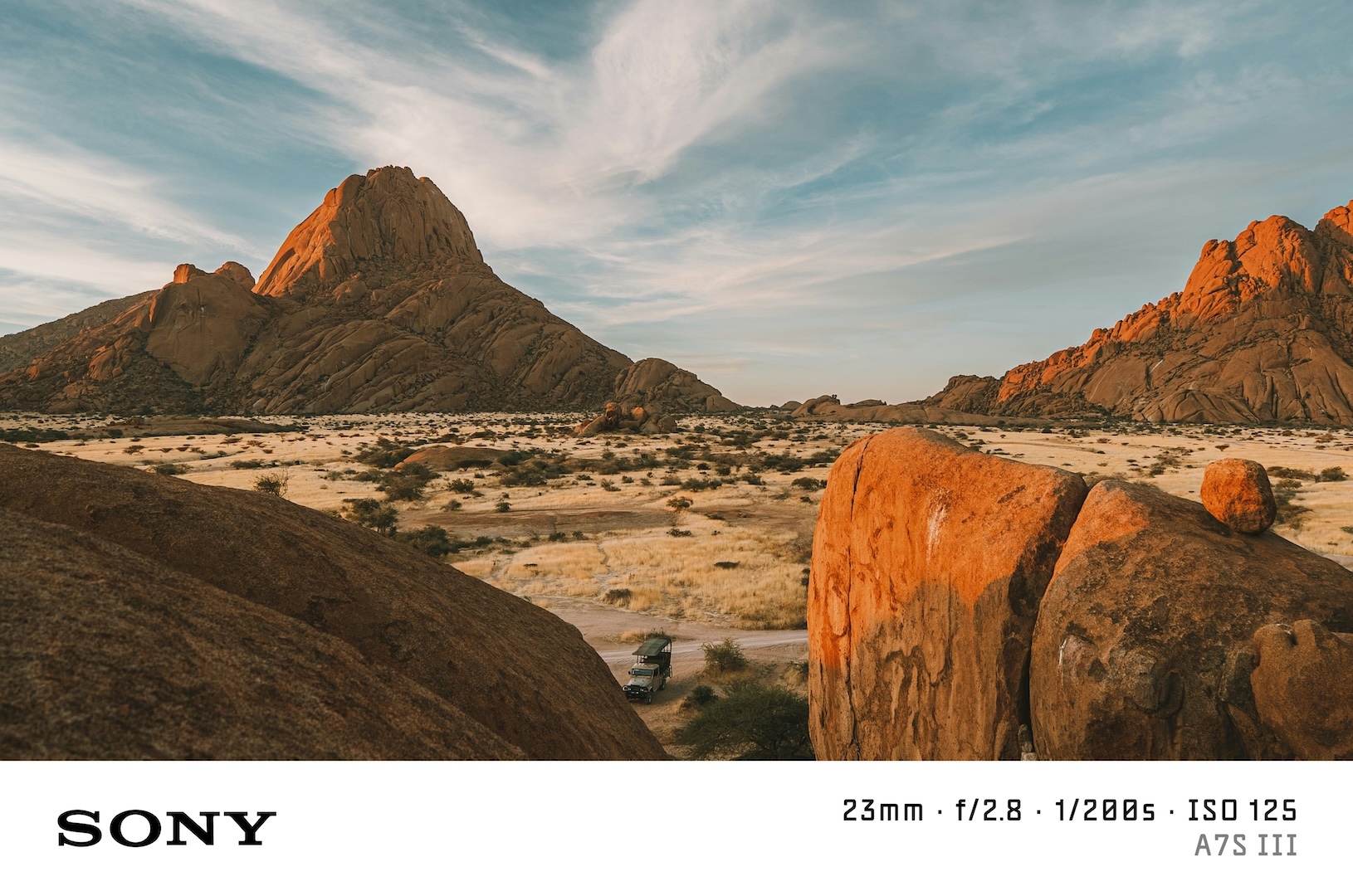
Photo by Nir Himi on Unsplash.
Watermarks now support brand logos. When you add a watermark, the app reads the camera make from your photo's EXIF data and places the corresponding logo in the bottom bar automatically — no configuration needed.
How It Works
When you open the Watermark panel and apply a preset, the app checks the Make field in your photo's EXIF data. If it matches a supported brand, the logo is loaded and rendered in the watermark alongside your camera info.
Supported brands: Canon, Nikon, Sony, Fujifilm, Leica, Apple, Google, Samsung, Olympus, Panasonic, Hasselblad, DJI, GoPro, Ricoh.
Manual Brand Override
If your photo doesn't have EXIF data, or you want to change the brand, there's a brand picker inside the Watermark modal. Tap a brand pill to lock in that logo. You can also type a custom brand name directly — the logo updates to match as you type.
Show Brand Name Toggle
By default, the brand name appears as text next to the logo. A toggle lets you hide the text and show only the logo, which works well for well-known brands where the mark speaks for itself.
New: Logo Preset
There's a new Logo preset in the watermark selector. It renders only the brand logo — centred, no bottom bar, no settings text. Clean and minimal.
The full preset list is now:
| Preset | Style | Content |
|---|---|---|
| Classic | Bottom bar | Brand logo + full camera info |
| Shot On | Bottom bar | Brand logo + "SHOT ON [Brand]" |
| Logo | Centred | Brand logo only |
| Clean Frame | White border | No text |
| Polaroid | Full border | Brand logo + camera info |
| Blur | Blurred background | Brand logo + camera info |
| Signature | Bottom bar | Camera info + your handle |
Quick EXIF Editing in the Watermark Modal
The Watermark modal now includes a compact editor for brand and model — the two fields most likely to need adjustment. For full metadata editing, a link opens the complete EXIF editor.
Try It
- Open SHOTON APP and upload a photo
- Tap Watermark and choose any preset
- If your photo has camera EXIF, the logo appears automatically
- Use the brand picker to override or pick a brand manually
- Try the Logo preset for a minimal look
Disclaimer: SHOTON APP is not affiliated with, endorsed by, or sponsored by any camera or device manufacturers mentioned in this post (including Canon, Nikon, Sony, Fujifilm, Leica, Apple, Google, Samsung, Olympus, Panasonic, Hasselblad, DJI, GoPro, and Ricoh). Brand names and logos are the property of their respective owners and are used only to identify supported devices for the convenience of our users. Use of these trademarks does not imply any partnership or endorsement.
The feature is provided for creative and informational purposes only. SHOTON APP and its contributors make no representations or warranties about the suitability or accuracy of third-party brand information. Users are responsible for ensuring they have the rights to any images they upload and for complying with applicable laws and platform terms.