
PhotoColors Frame: Create a Photo Color Palette with HEX Codes
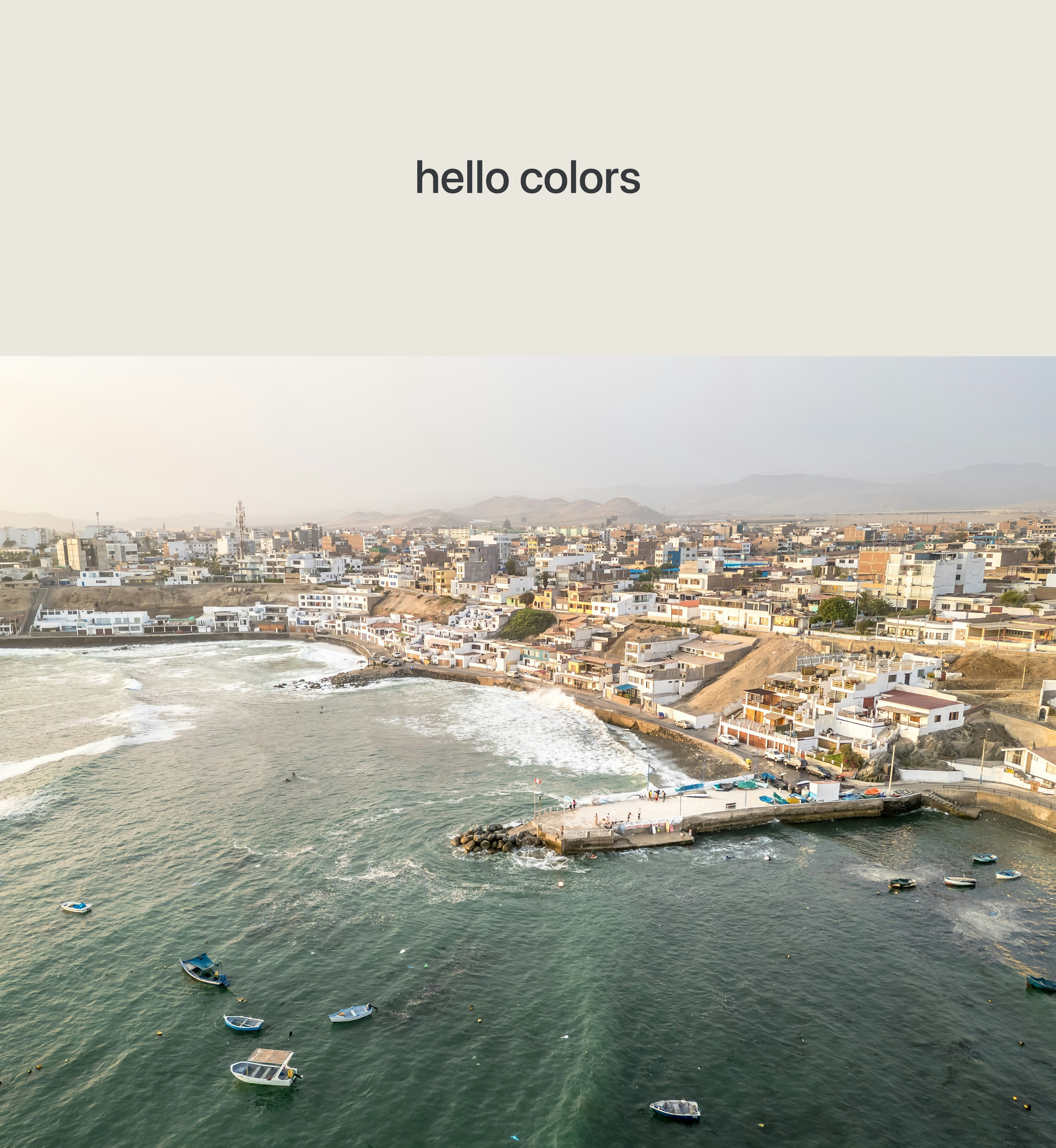
Photo by Marc Wieland on Unsplash.
PhotoColors is a new frame option in SHOTON APP that automatically extracts the dominant colors from your photo and turns the image into a styled color card. Every color in the extracted palette comes with its HEX code, so you can use the output directly in design work, mood boards, or social posts.
What PhotoColors Does
When you apply the PhotoColors frame, the tool samples pixel data from your image directly in the browser - no upload to a server, no external API. The result is a set of 3, 4, or 5 distinct colors that represent the tones your photo actually contains, along with an optional visual card layout.
This makes it a practical photo color palette generator for anyone who wants to extract colors from a photo without switching between multiple tools.
Two Styles
Mood Card
A solid color panel extends above the photo, filled with the dominant extracted color. The original image area remains intact below it, and the border size can be set to small, medium, or large.
This style is directly inspired by the aesthetic used in apps like PhotoColors for iOS, where a single dominant tone and a place name create a clean, minimal card.
Palette Card
The full photo appears at the top of the card. Below it, a seamless color grid extends the canvas with the extracted palette and optional HEX labels. You can choose 3, 4, or 5 colors, and set the bottom border to small, medium, or large. This style is useful when you want to extract colors from a photo and reference the full range of tones rather than highlight just one.
Togglable Options
Each PhotoColors card can be customised with individual toggles:
| Option | What it does |
|---|---|
| Border size | Choose a small, medium, or large color extension |
| Color count | Show 3, 4, or 5 extracted colors in Palette Card |
| Custom title | Add any text to the Mood Card panel |
| HEX codes | Show or hide the #RRGGBB label inside each color cell |
| Location | Display the location name stored in your EXIF data |
| Date & time | Display the capture date/time stored in your EXIF data |
Location and date/time are off by default. If your photo does not contain EXIF location or time data, those toggles are disabled - you can add them manually in the EXIF editor before applying the frame.
HEX Color Palette Generator, Client-Side
All color extraction runs entirely in your browser using the Canvas API. Your image is never sent to a server. This keeps the process fast, private, and consistent with how the rest of SHOTON APP handles image processing.
The algorithm samples the image at intervals, quantizes the color space into buckets, and picks the most frequent colors while ensuring each color in the palette is visually distinct from the others. This avoids returning five near-identical shades of the same tone.
How to Use It
- Open the editor and upload a photo.
- Tap Frame in the toolbar.
- Select PhotoColors from the frame grid.
- Choose Mood Card or Palette Card.
- Toggle the options you want, add a custom title if needed.
- Tap Apply and download.
Adding Location and Time
If you want the location or capture time to appear on the card, add them in the EXIF editor before opening the Frame picker:
- Tap EXIF in the toolbar.
- Scroll to the optional Location and Date/Time fields at the bottom.
- Enter a readable place name (for example, "Zao National Park") and the date or time you want displayed.
- Save and then apply PhotoColors.
Photos with existing EXIF GPS data will have the location pre-filled as decimal coordinates. You can replace that with a readable place name in the editor.
Use Cases
- Design reference: extract a brand-consistent palette from a product or lifestyle photo.
- Social content: share a styled color card alongside a travel or photography post.
- Mood boards: quickly identify and document the dominant tones in a shoot.
- Photography notes: attach location and time to a photo in a clean, exportable format.
Try It
PhotoColors is available now in the editor. It works on both portrait and landscape images, and the extracted palette automatically adapts to the colors present in that specific photo.