

What is a Shot on Olympus Watermark?
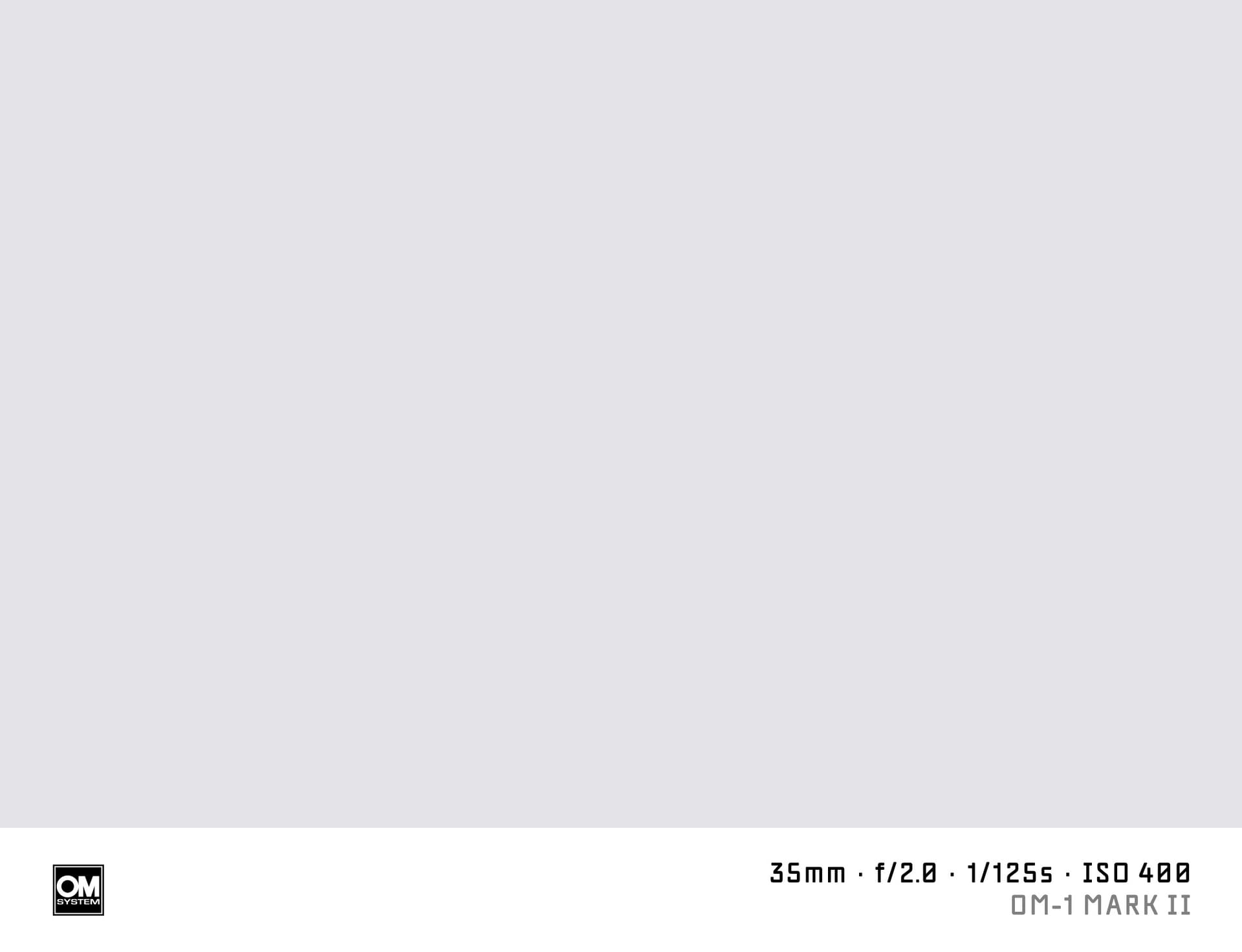
A "shot on Olympus" or "shot on OM System" watermark adds the Olympus logo and your Micro Four Thirds camera details to the bottom of your photo. Olympus cameras (now rebranded as OM System) are popular for wildlife, macro, and travel photography thanks to their compact size and weather sealing.
SHOTON creates this watermark locally in your browser — no upload needed.
What Camera Info Appears?
| Field | Example |
|---|---|
| Brand logo | Olympus/OM System logo |
| Camera model | OM System OM-1 |
| Aperture | f/4.0 |
| Shutter speed | 1/2000s |
| ISO | ISO 400 |
| Focal length | 100mm (200mm equiv.) |
EXIF data is read automatically from your Olympus file. All fields are editable.
Supported Olympus / OM System Models
- OM System OM-1 Mark II — 20 MP Micro Four Thirds, 120fps, AI subject detection
- OM System OM-5 — compact weatherproof body with hand-held high-res shot
- Olympus OM-D E-M10 Mark IV — entry-level mirrorless with 20 MP sensor
- Olympus PEN E-PL10 — style-focused compact MFT
- OM System OM-1 — original 2022 flagship with stacked BSI sensor
Note: OM System is the current brand for the camera division. Older bodies still write "OLYMPUS" in EXIF.
All Olympus and OM System models are supported. If EXIF doesn't identify your model automatically, you can type any model name in the EXIF tab in the editor.
Olympus / OM System EXIF Notes
Olympus cameras write Make as "OLYMPUS CORPORATION" or "OLYMPUS IMAGING CORP." or "OM Digital Solutions." SHOTON normalises all of these to the Olympus logo. If you own an OM System body, the EXIF editor lets you change the model to show "OM System OM-1" exactly.
How to Add a Shot on Olympus Watermark
- Upload your photo using the dropzone above.
- The Classic frame opens automatically. SHOTON detects the Olympus logo from EXIF; if the brand is missing, Olympus is suggested and can be changed from Frame settings.
- Use the EXIF editor to update the model if you prefer "OM System OM-1" over the raw EXIF string.
- Download your watermarked image.
Privacy
Processing runs entirely in your browser. Photos are never sent to any server.
Frequently Asked Questions
Does SHOTON show the Olympus logo or the OM System logo? The Olympus logo is used for the Olympus brand. If you want to show OM System branding, you can change the brand in the EXIF editor. The OM System identity is managed under the Olympus key in SHOTON, so the Olympus logo will be applied.
The focal length shows 100mm but my lens is 100mm f/4 which is 200mm equivalent — how do I handle this? EXIF records the actual focal length (100mm), not the 35mm equivalent. You can add "(200mm equiv.)" to the focal length field in the EXIF editor if you want to show the crop-factor equivalent.
Is this free? Yes, completely free.
Does this work on iPhone or Android? Yes. Upload a photo directly from your phone using the dropzone above, or tap Camera Mode to shoot with a live filter preview. SHOTON reads your camera brand from EXIF when available. For uploads from this page, Olympus is suggested if no brand is detected; you can change the logo from Frame settings.
All brand names, logos, and trademarks referenced on this page are the property of their respective owners. SHOTON is an independent tool and is not affiliated with, endorsed by, or sponsored by any camera or phone manufacturer.