
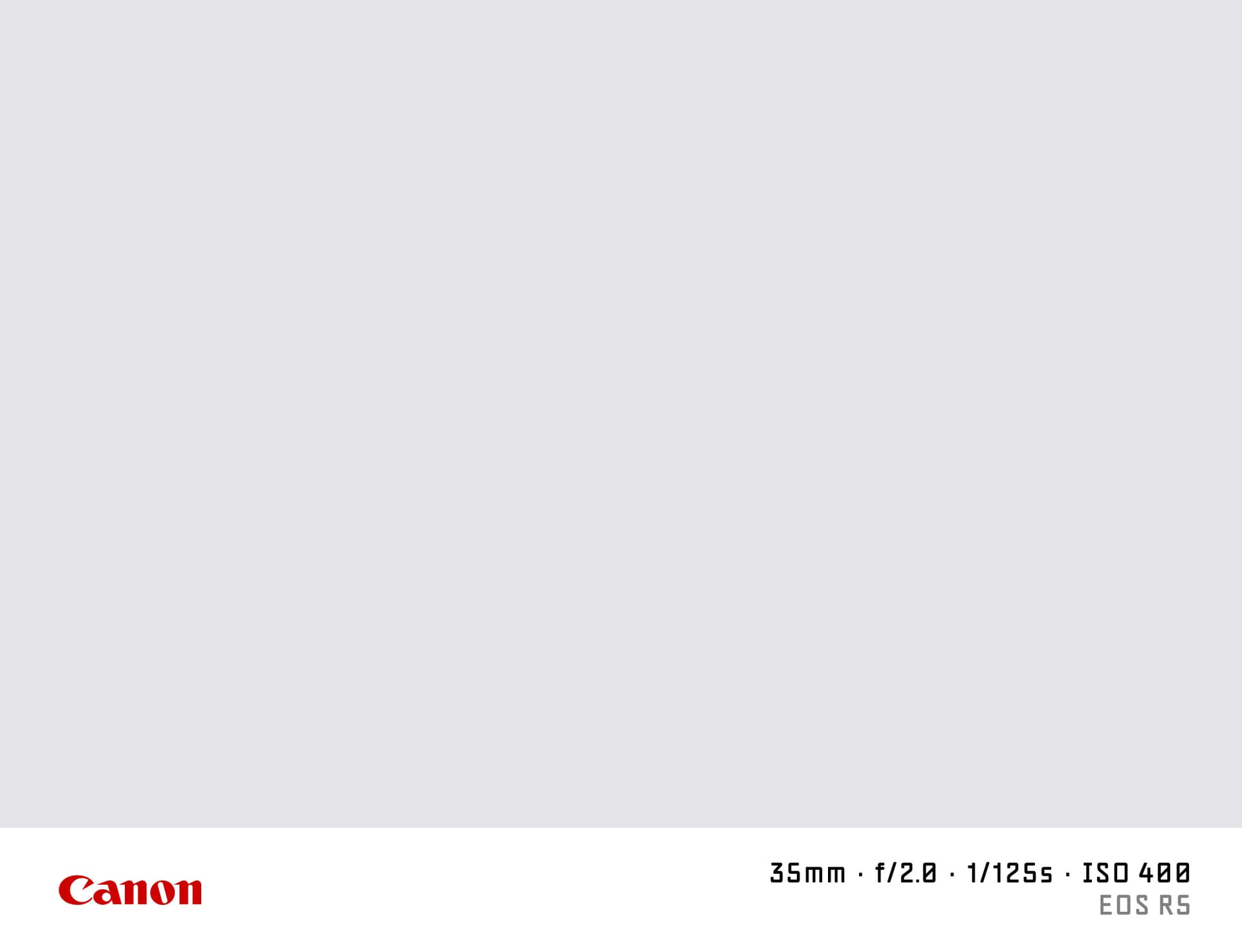

What is a Shot on Canon Watermark?
A "shot on Canon" watermark is a thin camera info bar added to the bottom of your photo showing which Canon body and lens settings you used. It is the same style popularised by camera review channels and photography communities on Instagram and X — a clean white strip with the Canon logo on the left, model name, and shooting parameters on the right.
SHOTON generates this entirely in your browser. Your photo is never uploaded to a server, and the original file is never modified — a new file is created on download.
What Camera Info Appears?
The Classic Canon watermark bar can display:
| Field | Example |
|---|---|
| Brand logo | Canon wordmark |
| Camera model | Canon EOS R5 |
| Aperture | f/1.4 |
| Shutter speed | 1/500s |
| ISO | ISO 100 |
| Focal length | 85mm |
If your photo has embedded EXIF data, SHOTON reads those values automatically. You can also edit any field manually before downloading.
Supported Canon Models
The watermark works with any Canon body. Some of the most commonly used models:
- Canon EOS R5 — 45 MP full-frame mirrorless, popular with portrait and wildlife photographers
- Canon EOS R6 Mark II — 40 MP hybrid shooter, strong video and photo balance
- Canon EOS 5D Mark IV — the classic full-frame DSLR still used in studios worldwide
- Canon EOS R50 — compact APS-C mirrorless ideal for travel and social content
- Canon PowerShot V10 — vertical vlog camera built for phone-first workflows
You can type any model name into the EXIF editor — SHOTON does not restrict which text appears.
How to Add a Shot on Canon Watermark
- Upload your photo using the dropzone above. JPEG, PNG, and HEIC are accepted.
- The Classic frame opens automatically. SHOTON detects the Canon logo from EXIF; if the brand is missing, Canon is suggested and can be changed from Frame settings.
- Edit camera info if needed — tap the EXIF button in the toolbar to change model, aperture, shutter speed, or ISO.
- Download the full-resolution watermarked image. Your original is untouched.
Does It Work Without EXIF Data?
Yes. If your photo has no EXIF metadata — for example a screenshot, a photo edited in another app, or a photo stripped of metadata — SHOTON falls back to editable defaults. You can type in any Canon model name and shooting parameters manually.
Privacy
All image processing happens in your browser. The photo data never leaves your device. SHOTON has no backend for image storage.
Frequently Asked Questions
Can I change the Canon model name to a specific body I own? Yes. Tap the EXIF button in the toolbar after uploading, edit the model field, and tap Save. The watermark updates immediately.
Does the Canon logo appear automatically? Yes. SHOTON includes the Canon wordmark logo and applies it when your photo has Canon EXIF data. If the metadata is missing, Canon is suggested from this page and can be changed from Frame settings.
Can I use a different watermark style? Yes. Tap the Frame button to switch to Minimal (shot on Canon with just the logo), Polaroid (white border with camera info), Blur (blurred background mat), or other styles.
Is this free? SHOTON is free to use with no account required. You can download as many photos as you want.
Does this work on iPhone or Android? Yes. Upload a photo directly from your phone using the dropzone above, or tap Camera Mode to shoot with a live filter preview. SHOTON reads your camera brand from EXIF when available. For uploads from this page, Canon is suggested if no brand is detected; you can change the logo from Frame settings.
All brand names, logos, and trademarks referenced on this page are the property of their respective owners. SHOTON is an independent tool and is not affiliated with, endorsed by, or sponsored by any camera or phone manufacturer.